This process is used to publish a catalogue product with a BBS product code, or a BBS-only product (store product) to the eStore. Note: For a catalogue-only product, please refer to Show or Hide a Catalogue-Only Product.
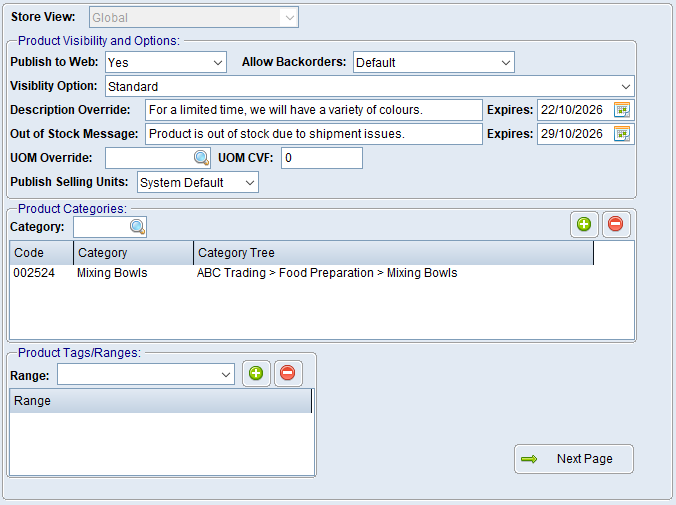

1.Navigate to Product Masterfile Maintenance. 2.Enter or look up the required product. 3.Select the eStore Settings tab. 4.If more than one eStore Store View is available, select the required Store View. Otherwise, BBS displays the only available Store View. 5.Set Publish to Web as required: oAutomatic - For a catalogue product with a BBS product code, BBS will use the catalogue rules as defined in Catalogue Product Rules and Catalogue Product Filter. This option will not publish a BBS-only product (store product). oYes - Publishes the product, subject to other product rules such as discontinued-product handling. oNo - The selected product will not be published to the eStore. 6.For a BBS-only product (store product), enter an eStore Category and click the plus (+) button to add it to the Product Categories list. 7.For a catalogue product with a BBS product code, leave the Category list blank to use its mapped catalogue category. Add a category here only when the product needs to appear in a different eStore category. 8.Check that Visibility Option is set to Standard unless another visibility treatment is required. 9.Save the product.
BBS schedules the product for recalculation and upload when the product is saved. An individual product change will normally be processed by the background eStore integration without the user running an upload. |

